
Data Model
Overview
The Data Model page (accessible via Administration > System > Data Model) is the central tool for managing exports, imports, and viewing the history of operations performed on your data model.
The data model is the backbone of your PIM: it defines how your product information is organized, which attributes exist, and how entities are related to one another. Managing this structure through import/export allows you to duplicate it, back it up, and deploy it.
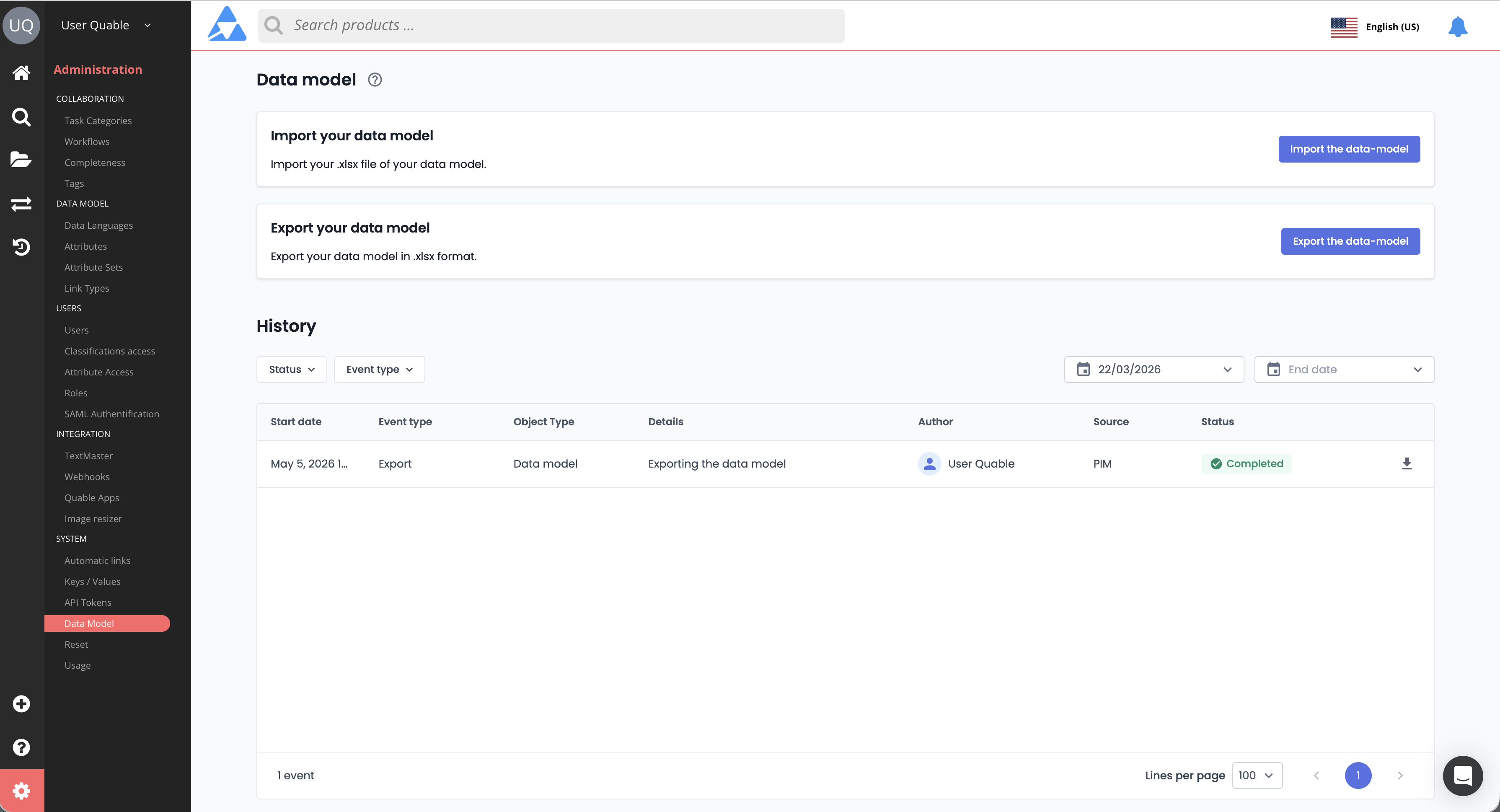
In a single .xlsx file, you can import or export the entire structure of your Quable PIM content, including:
- data languages — the languages used for entering and translating product information;
- document types and attributes — the structure and organization of your Product Sheets;
- attribute sets — groupings of attributes for different document types;
- link types — the relationships between your document types;
- attributes for variants, classifications, assets, and links.
Irreversible actionImporting a data model permanently deletes the existing structure. Always export your model before performing any modification or reset operation.
User Permissions
Access to the System > Data Model page is subject to the permissions configured in User Roles.
| Required permission | What it allows |
|---|---|
| Administration > View | Access all administration sections, including the System section. Without this permission, the page is not visible. |
Data model import and export actions do not have separate granular permissions in the permissions table: they are accessible to any user whose role includes the Administration > View permission.
In practice, only Quable administrators should have this permission. Manipulating the data model is a high-impact technical operation: a mistake can permanently delete the entire PIM structure and all associated data.
Best practiceRestrict access to this page to the technical administrators responsible for PIM configuration. For contributor, translator, or media studio profiles, this section should remain inaccessible.
Exporting the Data Model
The export allows you to retrieve a copy of your PIM's current structure as an .xlsx file. Typical use cases include:
- Backing up your model before a major modification or reset;
- Documenting your PIM structure for your teams or integration partners;
- Duplicating a structure to another instance (e.g., migrating from a staging environment to production);
- Auditing or updating the model outside of the PIM before reimporting it.
Export Procedure
-
From the administration menu, go to System > Data Model.
-
Click the Export data model button.
-
Processing runs in the background. Once complete, the
.xlsxfile is available in the history panel at the bottom of the page. -
Click the Download button at the end of the row to save the file to your computer.

Good to knowThe export does not modify your instance in any way. It is a risk-free operation.
Importing the Data Model
The import allows you to load a data structure into your Quable PIM instance from an .xlsx file that complies with the Quable format. Typical use cases include:
- Initializing a new instance with a model prepared in advance;
- Restoring a model after a reset;
- Applying a structural update prepared outside of the PIM.
Irreversible actionImporting a data model permanently deletes the existing structure of your instance before loading the new one. All product data, assets, and settings associated with the previous structure are lost. This action cannot be undone.
Before any import, export and save the existing model to your computer.
Import Procedure
-
From the administration menu, go to System > Data Model.
-
Click Import data model.
-
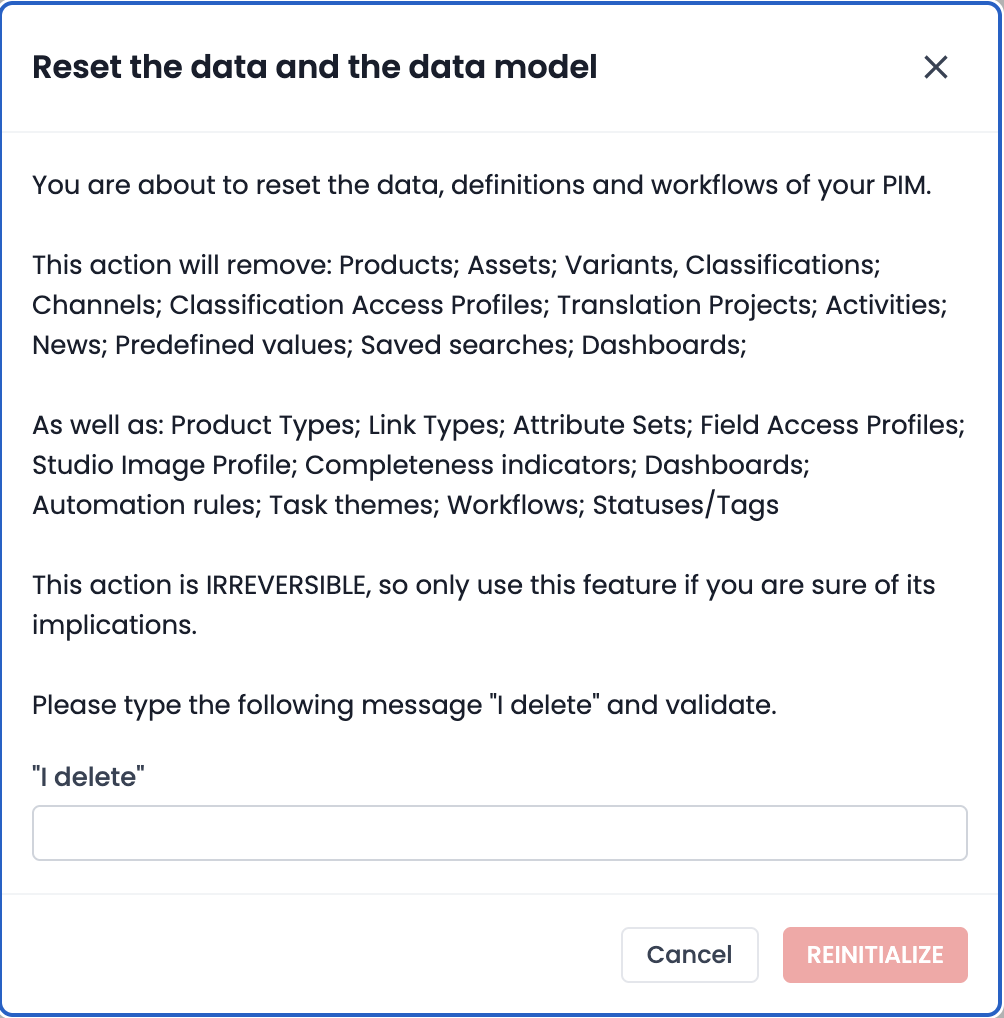
A Data and Data Model Reset warning window appears. Read it carefully.
-
Confirm your intent by entering the required validation text in the dialog box.
-
Click Reset to initiate the deletion of the existing structure (this step may take a few minutes).
-
Once the deletion is complete, a window opens for you to select the
.xlsxfile to import. -
Check the Overwrite files with the same name option if needed.
-
Click Start to launch the import.
The Cancel button becomes active after the import starts, allowing you to interrupt the process if needed. Click Delete all to clear the queue, or Close to abort.
Two Scenarios to Distinguish
Instance with no data model
If your PIM does not yet have a defined data model (blank instance or after a full reset), a warning notifies you that the import will delete the default settings and objects. The procedure remains the same: confirm, then select your file.
Instance with an existing model
If your PIM already contains a data model, the import will fully replace the existing structure — including all document types, attributes, attribute sets, link types, and associated data. Entering the confirmation message is mandatory before the Reset button becomes active.
After the importOnce the data model has been successfully imported, you can start importing your product data via Data Flows > Imports.
Data Model File Format
The .xlsx file is organized into several sheets, each corresponding to an entity in the structure.
The .xlsx file used for import must strictly follow the structure expected by Quable PIM: sheet names, column headers, and accepted values. The easiest way to obtain a compliant file is to start from an export generated from a Quable instance and modify it.
LANGUAGES Sheet
Lists all active data languages on the instance.
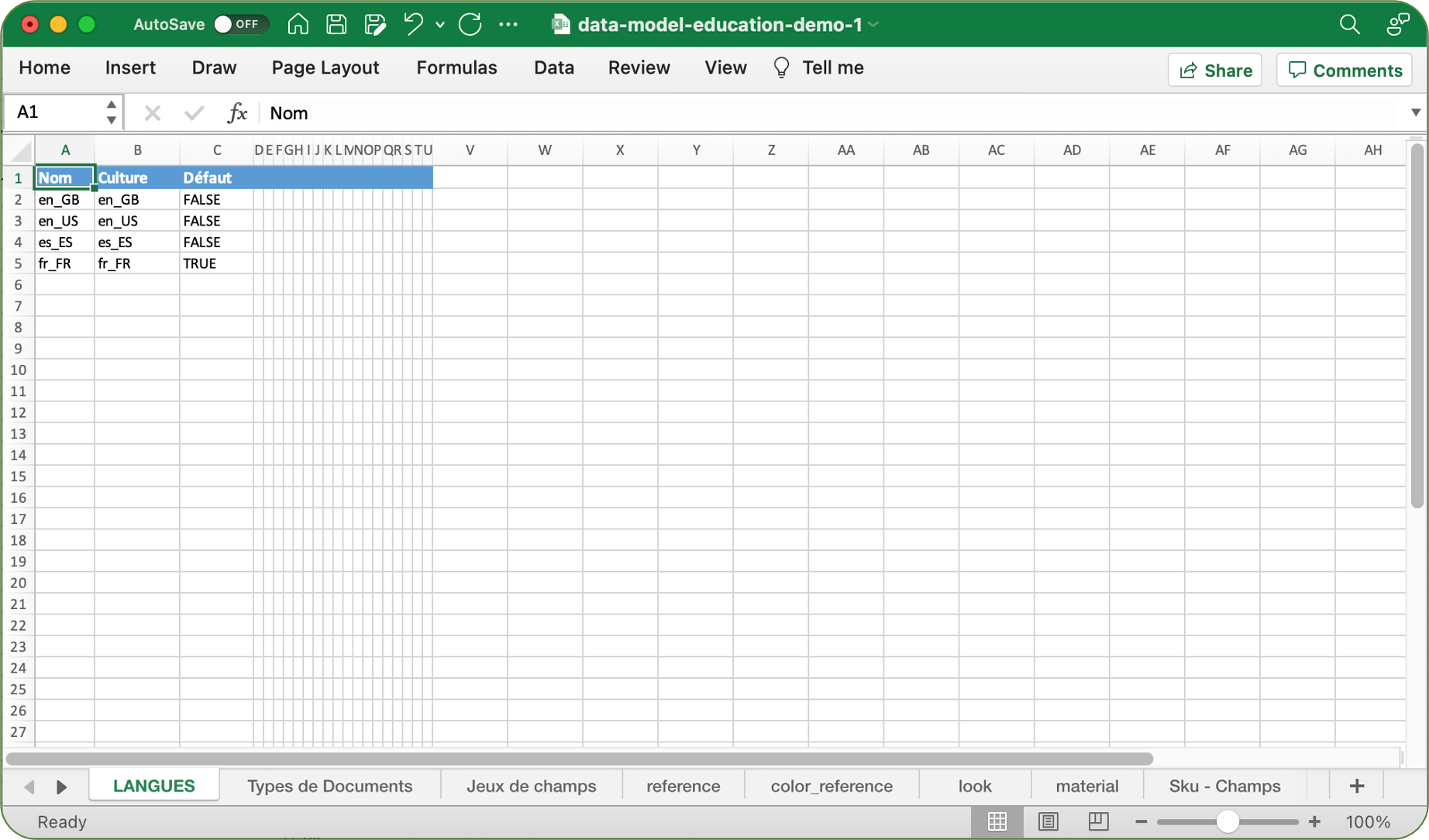
| Column | Description |
|---|---|
| Name | Name of the data language |
| Culture | Locale code (e.g., fr_FR, en_US) |
| Default | TRUE if this is the primary input language, FALSE otherwise |
Document Types Sheet
Lists all document types (= Product Sheets).
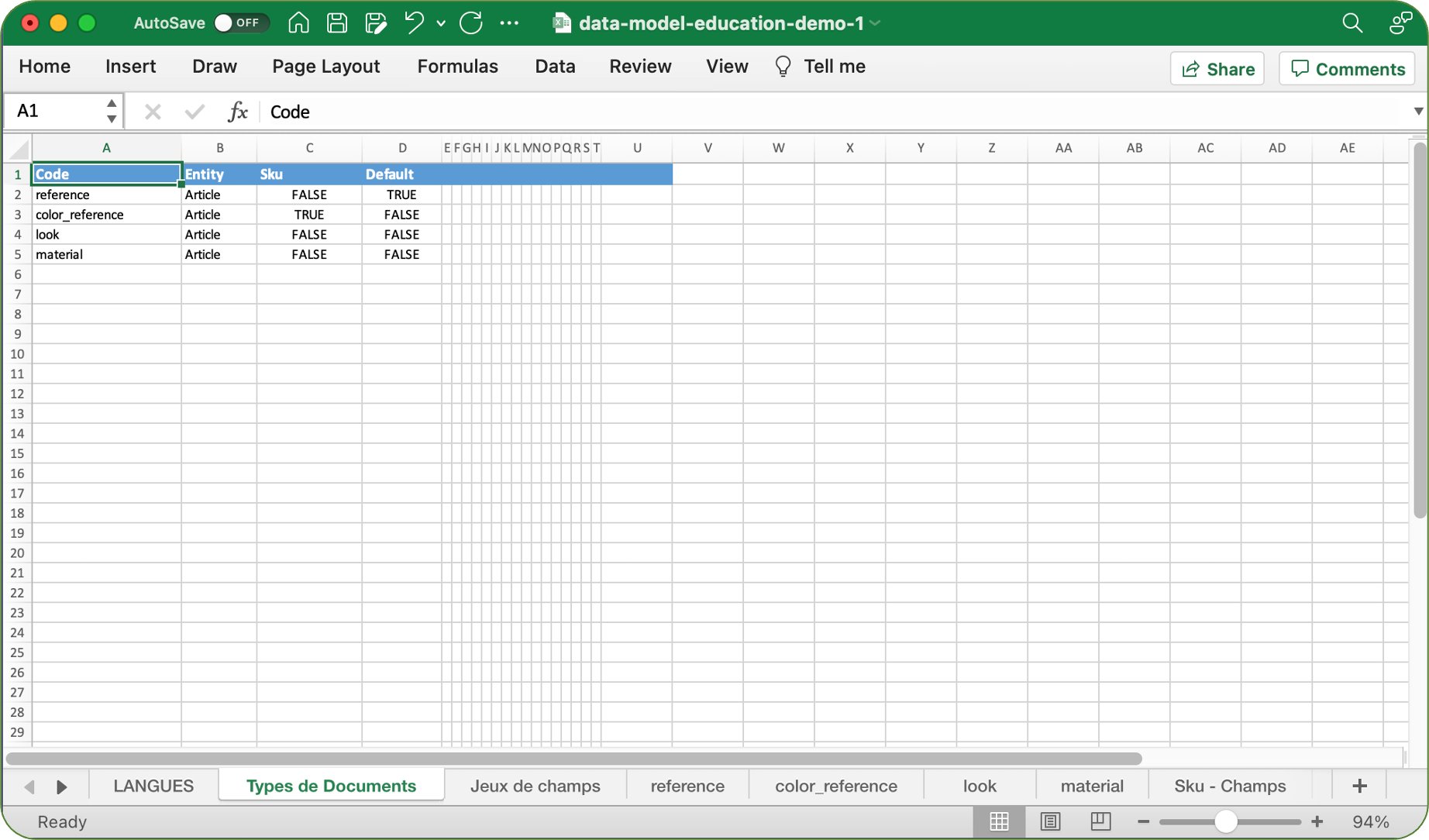
| Column | Description |
|---|---|
| Code | Unique identifier of the document type |
| Entity | Always Article |
| Sku | TRUE if the type uses variants |
| Default | TRUE if this is the primary document type |
Attribute Sets Sheet
Lists all attribute sets.
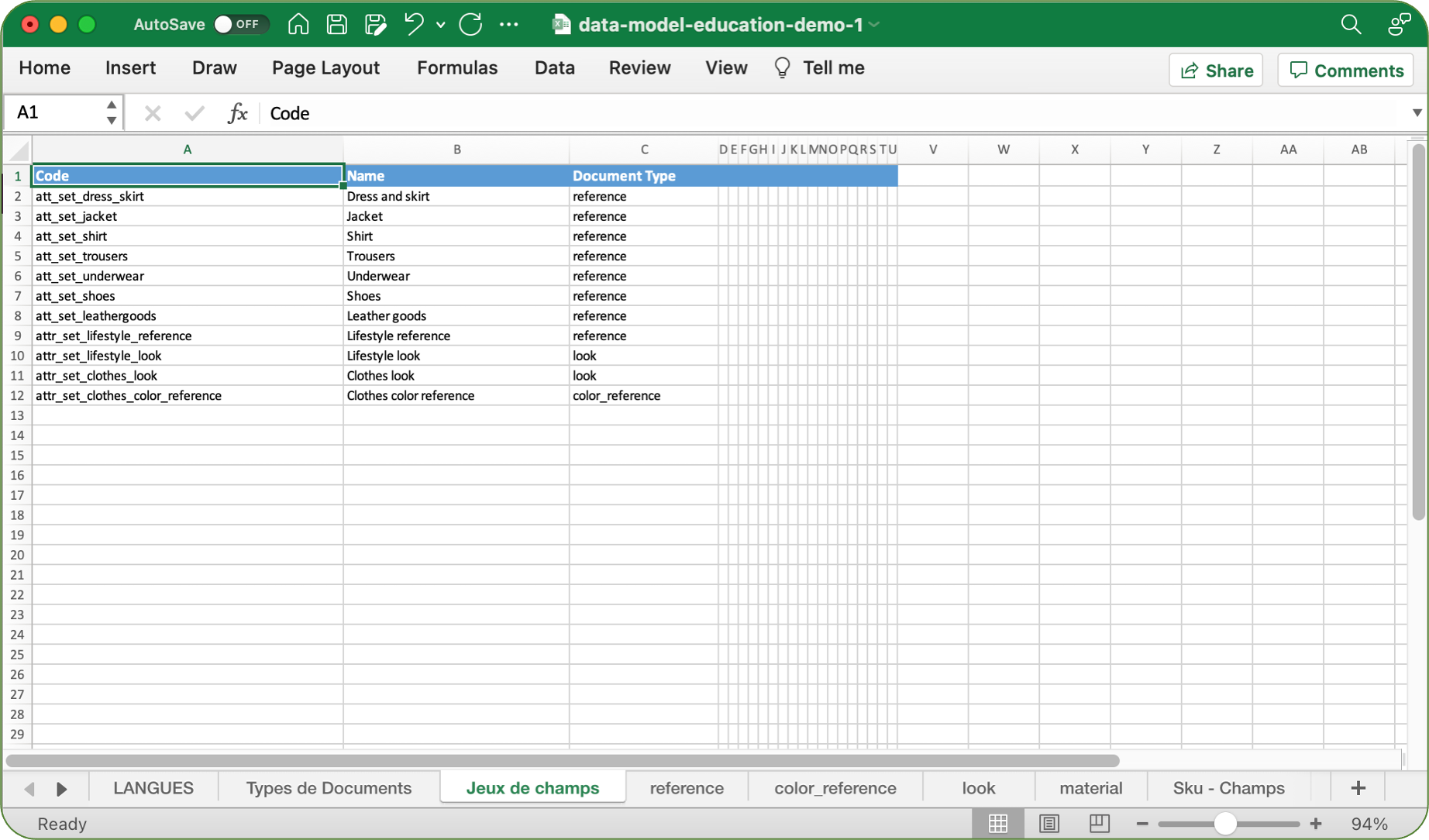
| Column | Description |
|---|---|
| Code | Unique identifier of the attribute set |
| Name | Name of the attribute set |
| Document Type | Document type to which the attribute set belongs |
Per-Document-Type Sheets
ImportantOne sheet must be created for each defined document type.
Each sheet lists all attributes for the corresponding document type, along with their complete properties: name, code, type, mandatory status, hierarchical organization in the interface (tabs, sections, groups), filterability, visibility, editability, etc.
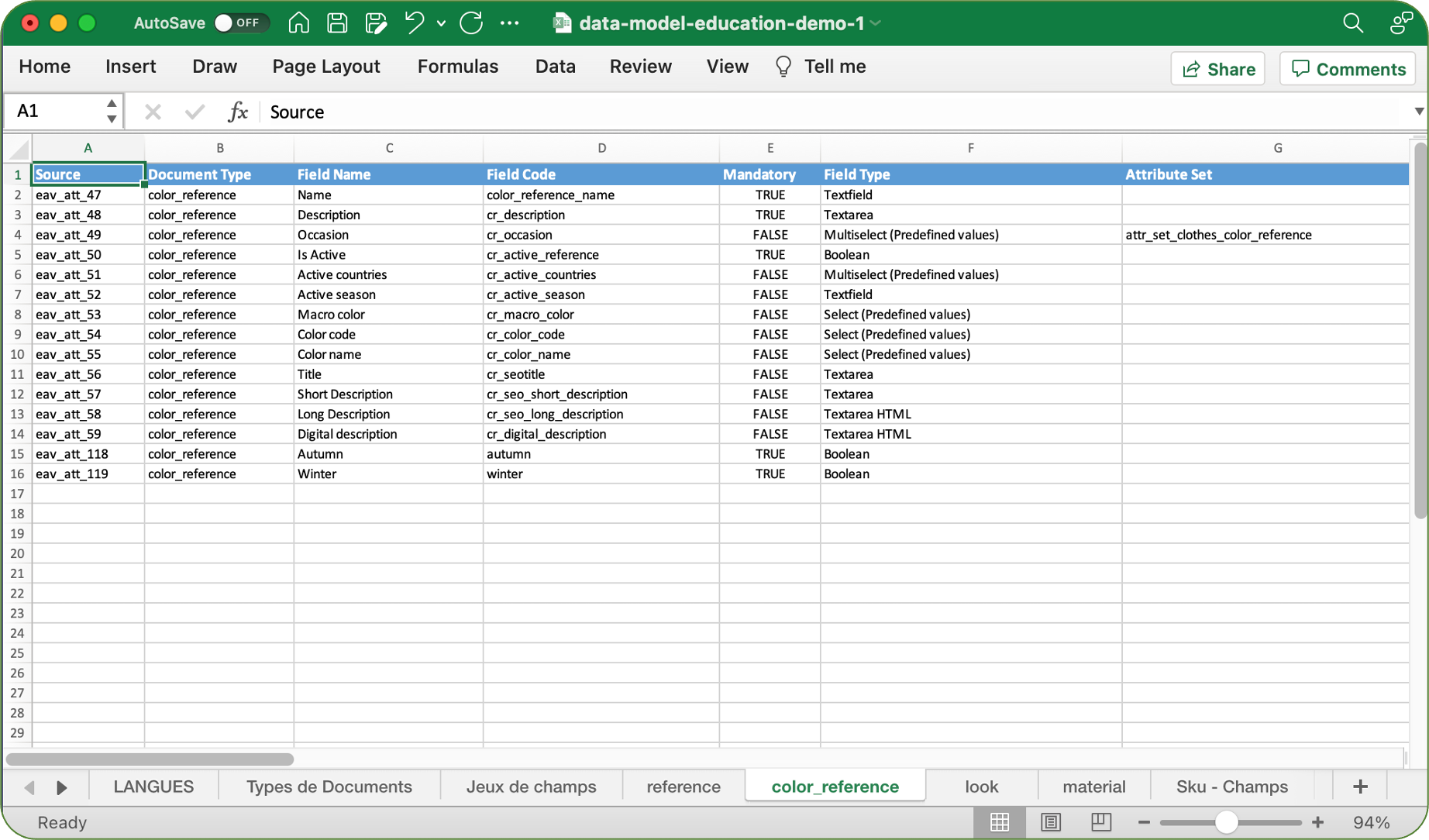
| Column | Description |
|---|---|
| Source | Imports - You must enter the original data source (e.g., ERP, PIM, etc.). Exports - Quable's internal code for the attribute is used. |
| Document Type | The name of the document type. |
| Field Name | The name of the attribute. |
| Field Code | The unique identifier of the attribute. |
| Mandatory | Indicates whether the attribute is mandatory or optional:
|
| Field Type | Indicates the attribute type. |
| Attribute Set | Indicates the attribute set(s) to which the attribute belongs. If the attribute belongs to more than one attribute set, commas are used to separate each attribute set. |
| Help Text | Includes the text added in the Help Text property of the attribute. |
| Field Length | Indicates the maximum number of characters allowed, as defined in the Maximum number of accepted characters property of the attribute. Text input fields only. |
| Decimal Length | Defines the number of decimal places. Decimal attribute types only. |
| Main Tab Sequence | Indicates the position of the attribute in the first section of the first tab of the document (1st hierarchical level). |
| Main Tab (level 1) | The name of the first tab of the document type (2nd hierarchical level). |
| Field Tab Sequence | Indicates the position of the attribute in the second section of the first tab of the document (4th hierarchical level). |
| Field Tab (level 2) | The name of the second section of the document type (3rd hierarchical level). |
| Field Group Sequence | Indicates the position of the attribute within the section's attribute group (4th hierarchical level). |
| Field Group (level 3) | The name of the section's attribute group (4th hierarchical level). |
| Validator (Regex) | This column must always be left empty. |
| Searchable | This property is no longer used. You can set FALSE in each cell. |
| Filterable | Indicates whether the Filterable (search) property of the attribute is enabled:
|
| Visible | Indicates whether the Visible (internal) property of the attribute is enabled:
|
| Writable | Indicates whether the Editable (internal) property of the attribute is enabled:
|
Sku - Fields Sheet
Lists all variant attributes along with their properties.
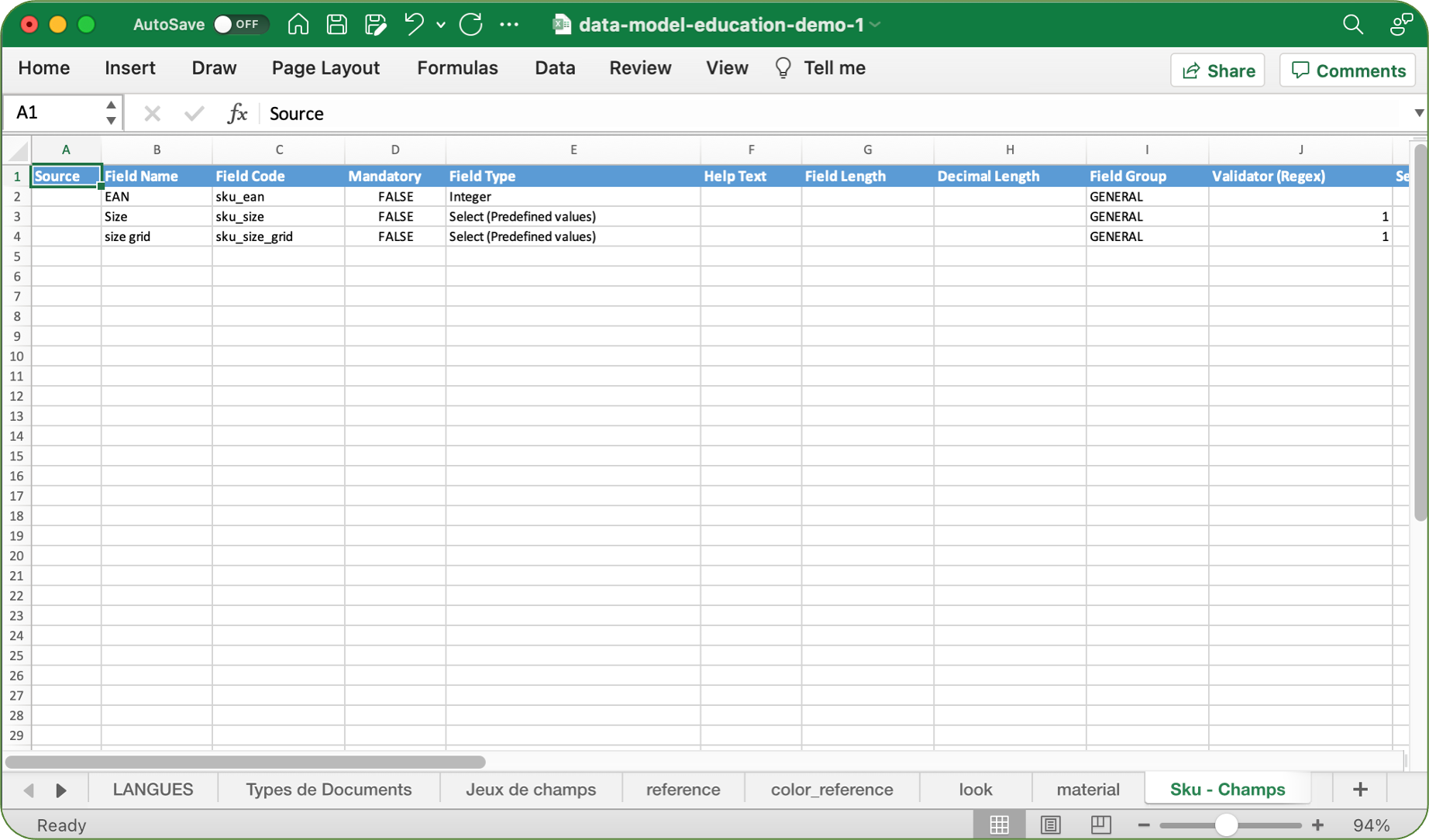
| Column | Description |
|---|---|
| Source | Imports - You must enter the original data source (e.g., ERP, PIM, etc.). Exports - This column is empty. |
| Field Name | The name of the attribute. |
| Field Code | The unique identifier of the attribute. |
| Mandatory | Indicates whether the attribute is mandatory or optional:
|
| Field Type | Indicates the attribute type. |
| Help Text | Includes the text added in the Help Text property of the attribute. |
| Field Length | Indicates the maximum number of characters allowed, as defined in the Maximum number of accepted characters property of the attribute. Text input fields only. |
| Decimal Length | Defines the number of decimal places. Decimal attribute types only. |
| Field Group | The name of the variant's attribute group (4th hierarchical level). |
| Validator (Regex) | This column must always be left empty. |
| Searchable | This property is no longer used. You can set FALSE in each cell. |
| Filterable | Indicates whether the Filterable (search) property of the attribute is enabled:
|
| Visible | Indicates whether the Visible (internal) property of the attribute is enabled:
|
| Writable | Indicates whether the Editable property of the attribute is enabled:
|
Classification Sheet
Lists all classification attributes along with their organization and properties.
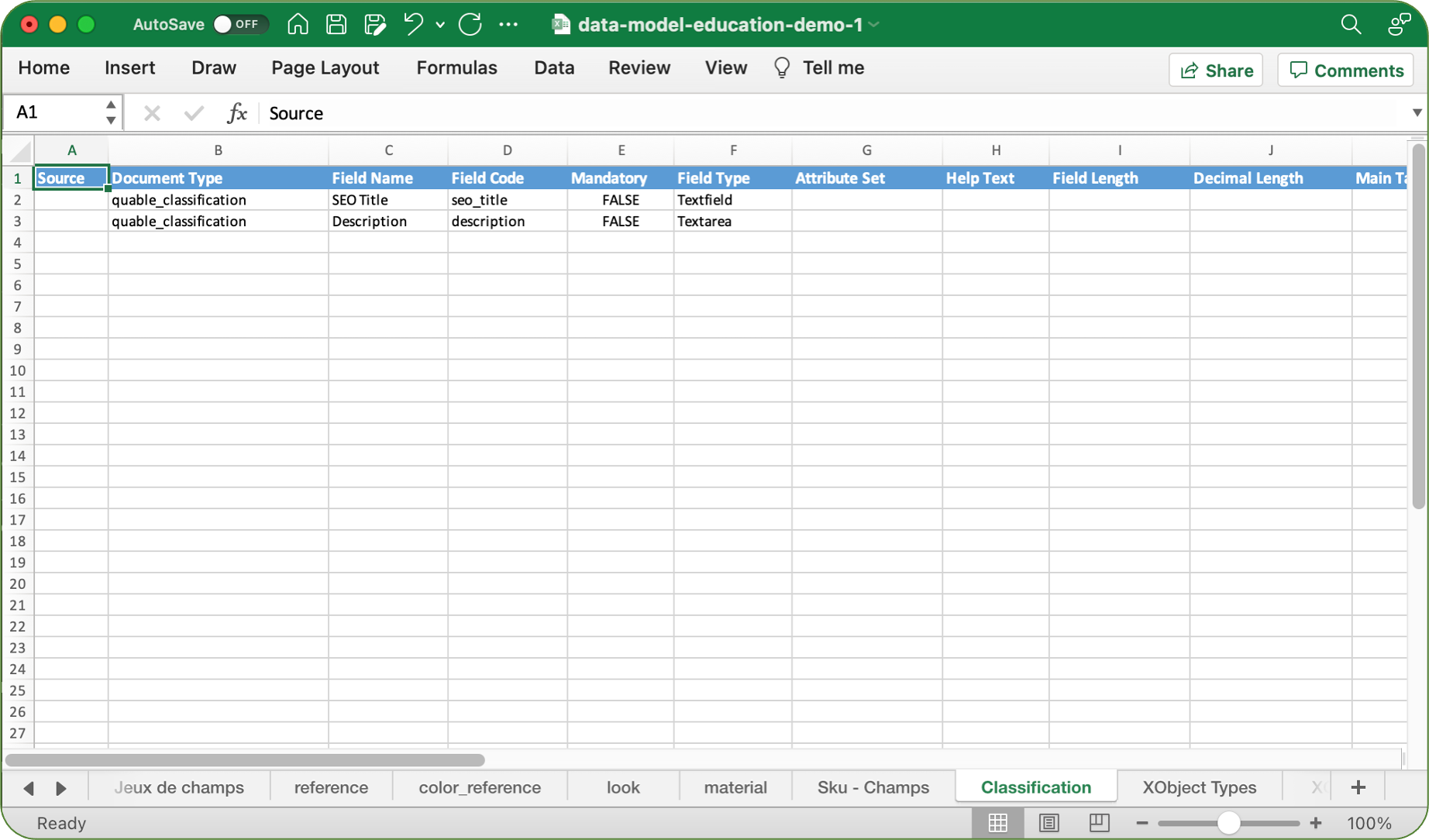
| Column | Description |
|---|---|
| Source | Imports - You must enter the original data source (e.g., ERP, PIM, etc.). Exports - This column is empty. |
| Document Type | The unique identifier of the classification. |
| Field Name | The name of the attribute. |
| Field Code | The unique identifier of the attribute. |
| Mandatory | Indicates whether the attribute is mandatory or optional:
|
| Field Type | Indicates the attribute type. |
| Attribute Set | Indicates the attribute set(s) to which the attribute belongs. If the attribute belongs to more than one attribute set, commas are used to separate each attribute set. |
| Help Text | Includes the text added in the Help Text property of the attribute. |
| Field Length | Indicates the maximum number of characters allowed, as defined in the Maximum number of accepted characters property of the attribute. Text input fields only. |
| Decimal Length | Defines the number of decimal places. Decimal attribute types only. |
| Main Tab Sequence | Indicates the position of the attribute in the first section of the first tab of the document (1st hierarchical level). |
| Main Tab (level 1) | The name of the first tab of the document type (2nd hierarchical level). |
| Field Tab Sequence | Indicates the position of the attribute in the second section of the first tab of the document (4th hierarchical level). |
| Field Tab (level 2) | The name of the second section of the document type (3rd hierarchical level). |
| Field Group Sequence | Indicates the position of the attribute within the section's attribute group (4th hierarchical level). |
| Field Group (level 3) | The name of the section's attribute group (4th hierarchical level). |
| Validator (Regex) | This column must always be left empty. |
| Searchable | This property is no longer used. You can set FALSE in each cell. |
| Filterable | Indicates whether the Filterable (search) property of the attribute is enabled:
|
| Visible | Indicates whether the Visible (internal) property of the attribute is enabled:
|
| Writable | Indicates whether the Editable (internal) property of the attribute is enabled:
|
XObject Types Sheet
Lists all link types defined between PIM entities.
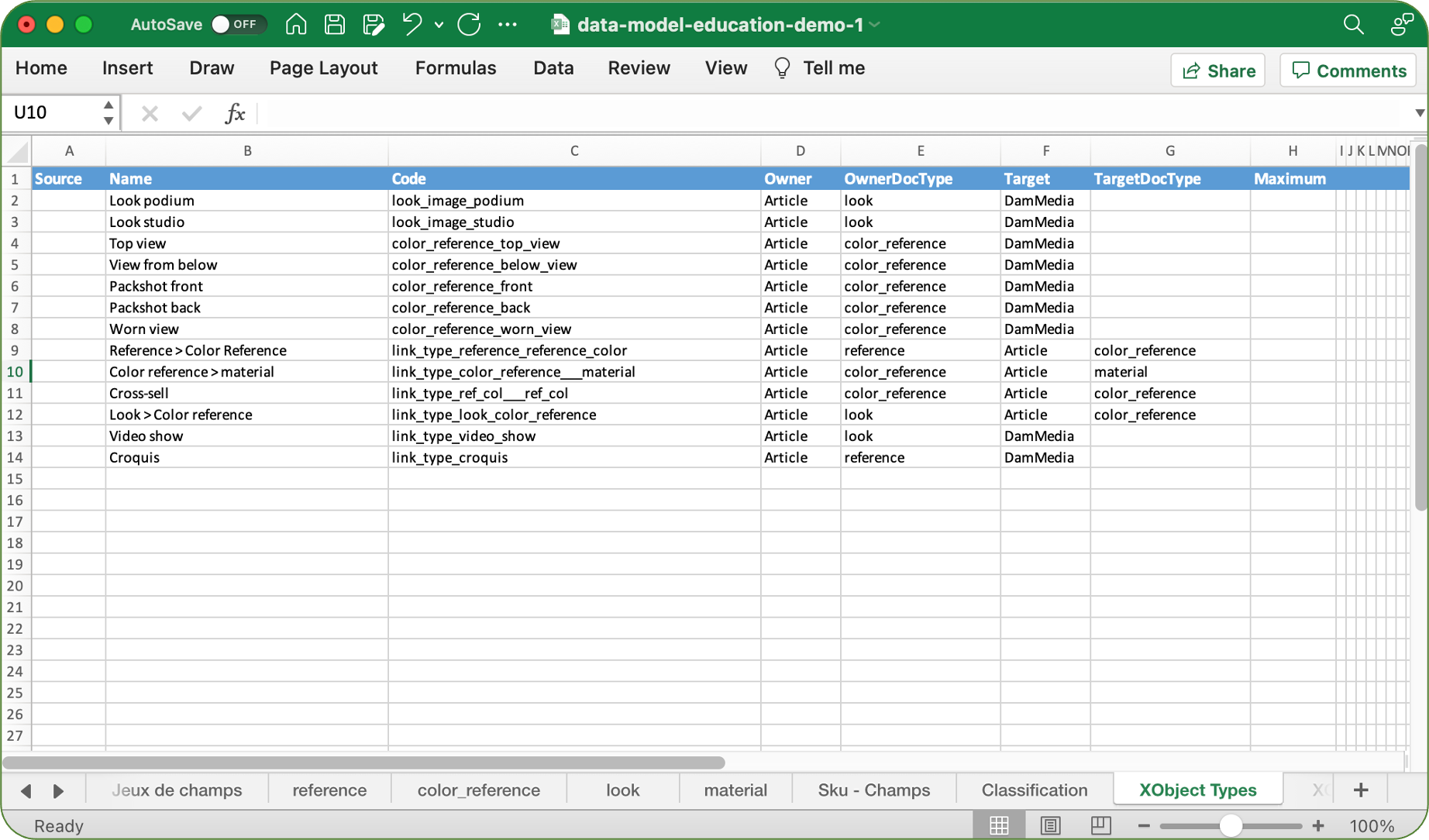
| Column | Description |
|---|---|
| Source | Imports - You must enter the original data source (e.g., ERP, PIM, etc.). Exports - This column is empty. |
| Name | The name of the link type. |
| Code | The unique identifier of the link type. |
| Owner | Indicates the parent object of the link type. This is always identified as an Article. |
| OwnerDocType | The *Data Model page of the link type (doc:liaisons#sélectionner-le-type-de-liaison). |
| Target | Identifies the data model of the link type (doc:liaisons#sélectionner-le-type-de-liaison):
|
| TargetDocType | If the child object is a document, this identifies the document type. |
| Maximum | The maximum number of links allowed by the link type. |
XObject Types - Fields Sheet
Lists all attributes associated with link types.
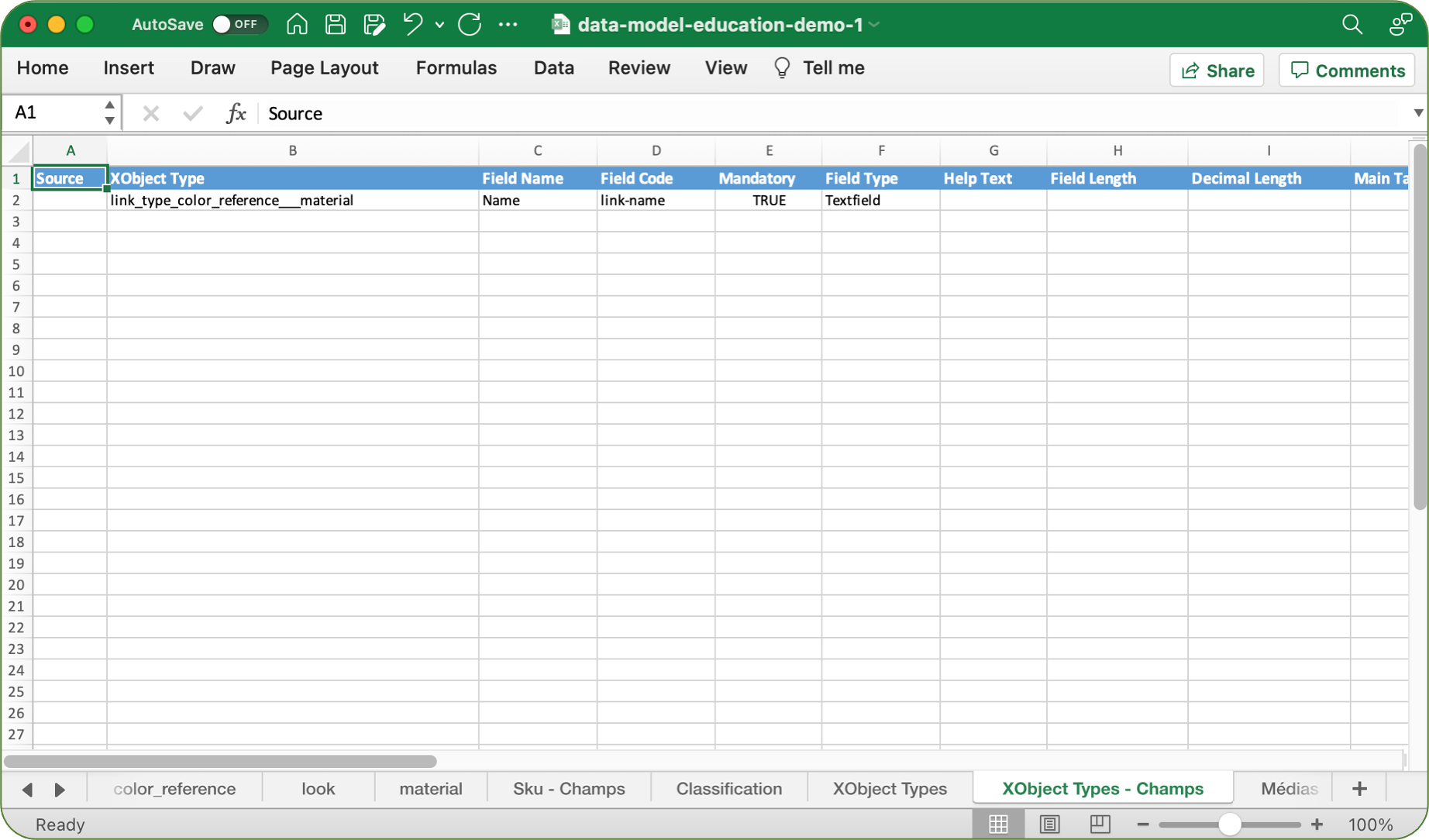
| Column | Description |
|---|---|
| Source | Imports - You must enter the original data source (e.g., ERP, PIM, etc.). Exports - This column is empty. |
| XObject Type | The unique identifier of the link type. |
| Field Name | The name of the attribute. |
| Field Code | The unique identifier of the attribute. |
| Mandatory | Indicates whether the attribute is mandatory or optional:
|
| Field Type | Indicates the attribute type. |
| Help Text | Includes the text added in the Help Text property of the attribute. |
| Field Length | Indicates the maximum number of characters allowed, as defined in the Maximum number of accepted characters property of the attribute. Text input fields only. |
| Decimal Length | Defines the number of decimal places. Decimal attribute types only. |
| Main Tab Sequence | Indicates the position of the attribute in the first section of the first tab of the document (1st hierarchical level). |
| Main Tab (level 1) | The name of the first tab of the document type (2nd hierarchical level). |
| Field Tab Sequence | Indicates the position of the attribute in the second section of the first tab of the document (4th hierarchical level). |
| Field Tab (level 2) | The name of the second section of the document type (3rd hierarchical level). |
| Field Group Sequence | Indicates the position of the attribute within the section's attribute group (4th hierarchical level). |
| Field Group (level 3) | The name of the section's attribute group (4th hierarchical level). |
| Validator (Regex) | This column must always be left empty. |
| Searchable | This property is no longer used. You can set FALSE in each cell. |
| Filterable | Indicates whether the Filterable (search) property of the attribute is enabled:
|
| Visible | Indicates whether the Visible (internal) property of the attribute is enabled:
|
| Writable | Indicates whether the Editable (internal) property of the attribute is enabled:
|
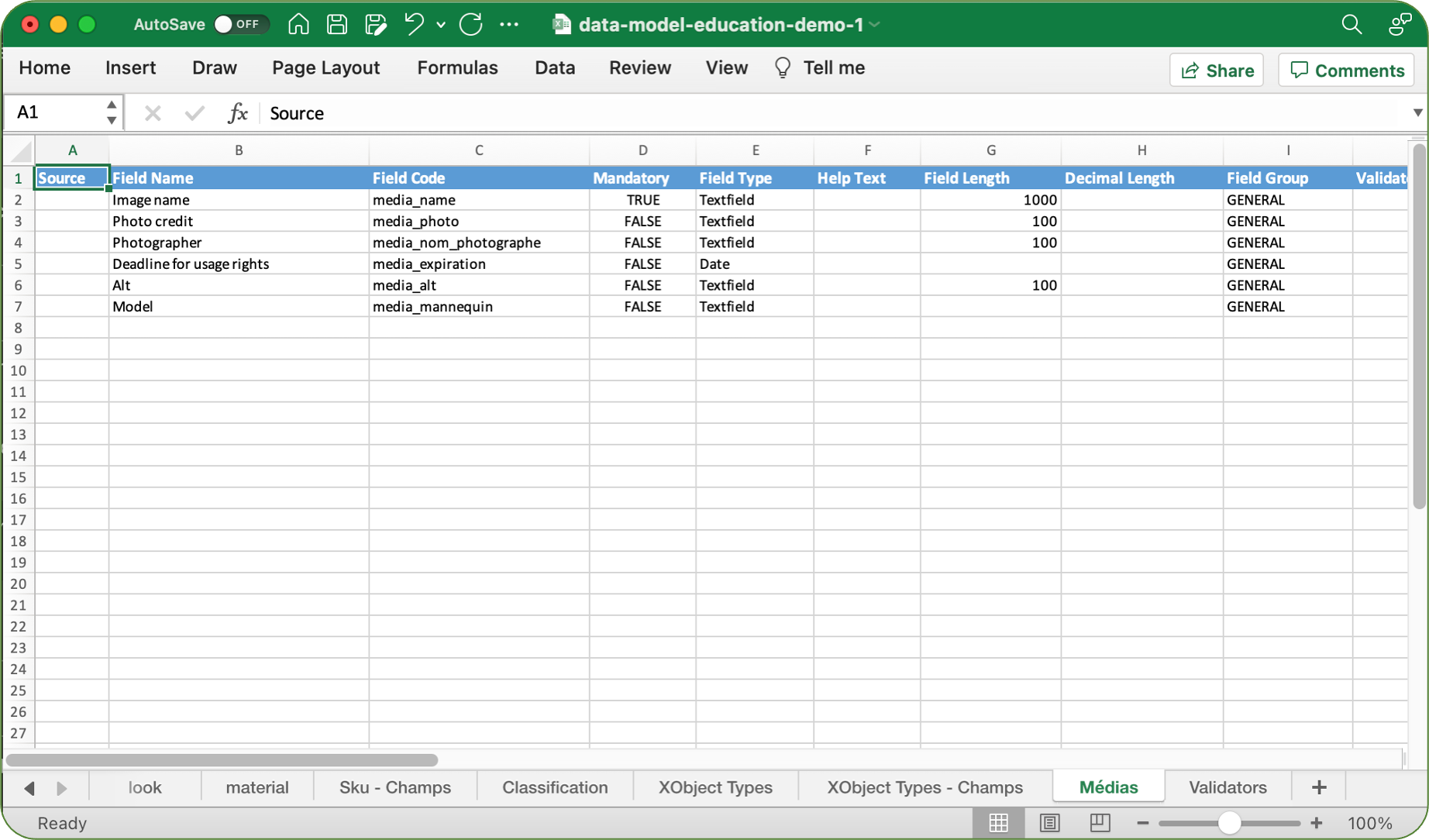
Assets Sheet
Lists all attributes for asset records.
| Column | Description |
|---|---|
| Source | Imports - You must enter the original data source (e.g., ERP, PIM, etc.). Exports - This column is empty. |
| Field Name | The name of the attribute. |
| Field Code | The unique identifier of the attribute. |
| Mandatory | Indicates whether the attribute is mandatory or optional:
|
| Field Type | Indicates the attribute type. |
| Help Text | Includes the text added in the Help Text property of the attribute. |
| Field Length | Indicates the maximum number of characters allowed, as defined in the Maximum number of accepted characters property of the attribute. Text input fields only. |
| Decimal Length | Defines the number of decimal places. Decimal attribute types only. |
| Field Group | Indicates the position of the attribute within the section's attribute group (4th hierarchical level). |
| Validator (Regex) | This column must always be left empty. |
| Searchable | This property is no longer used. You can set FALSE in each cell. |
| Filterable | Indicates whether the Filterable (search) property of the attribute is enabled:
|
| Visible | Indicates whether the Visible (internal) property of the attribute is enabled:
|
| Writable | Indicates whether the Editable (internal) property of the attribute is enabled:
|
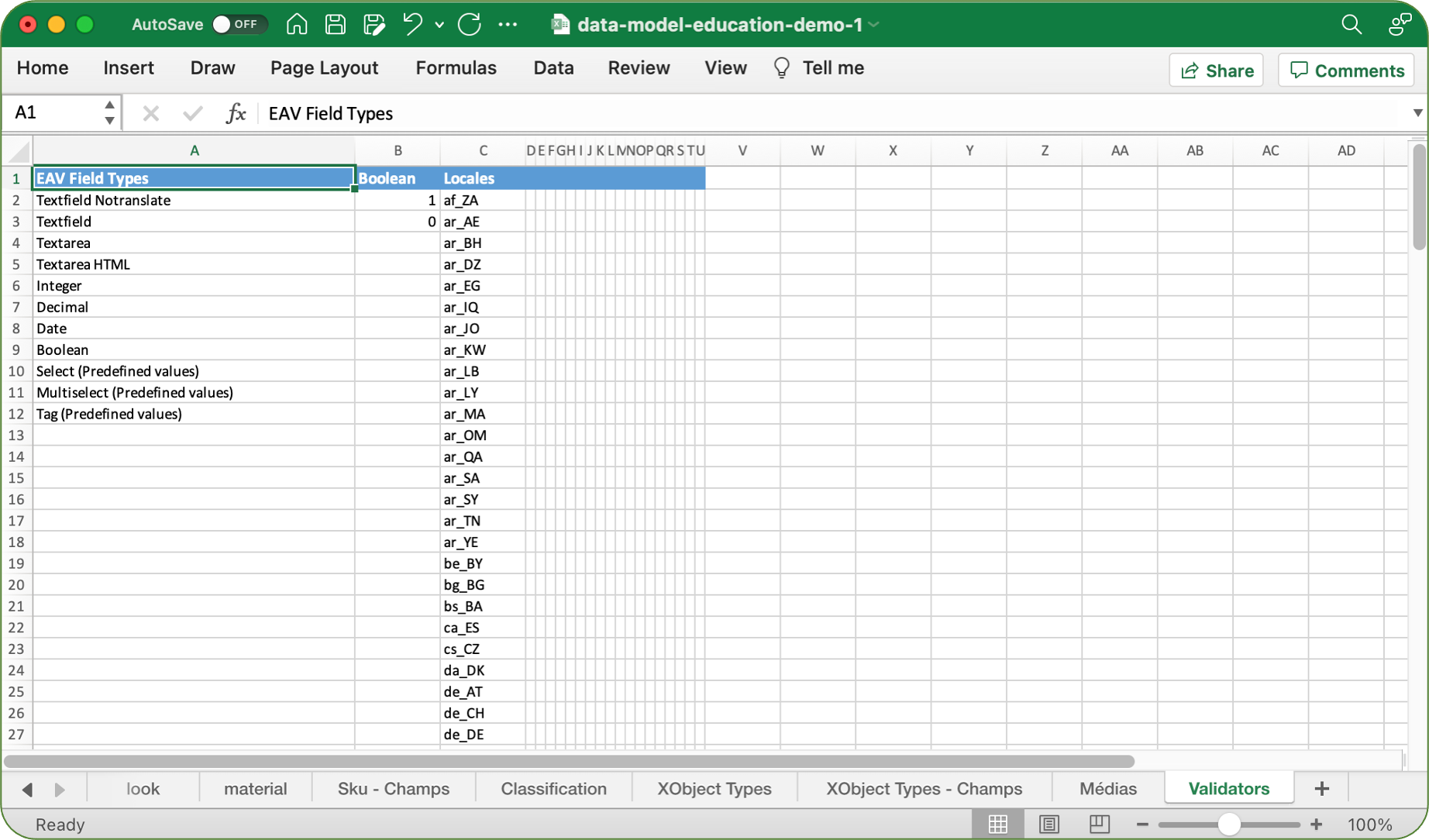
Validators Sheet
Technical reference for the attribute types available in Quable PIM and their accepted values (EAV types, boolean values, locale codes). This sheet is read-only — it must not be modified.
| Column | Description |
|---|---|
| EAV Field Types | Available attribute types. Available values:
|
| Boolean | The binary values for options:
|
| Locales | Identifies the available locales. The complete list of available locales is available here. |
Key Points to Watch
- The Source column is required on import (enter the data origin, e.g.,
ERP,PIM). On export, this column is empty or populated automatically. - Boolean values are expressed as
TRUE/FALSE(not1/0). - The Validator (Regex) column must always remain empty.
- The Searchable column is no longer used — set
FALSEin all cells. - The Validators sheet is a technical reference — do not modify it.
Operation History
Export Tracking
Each data model export generates an .xlsx file that is retained on the Administration > System > Data Model page under the history section. This section serves as the history of exported files available on your instance.
On this page, for each export you can Download the .xlsx file to your computer.
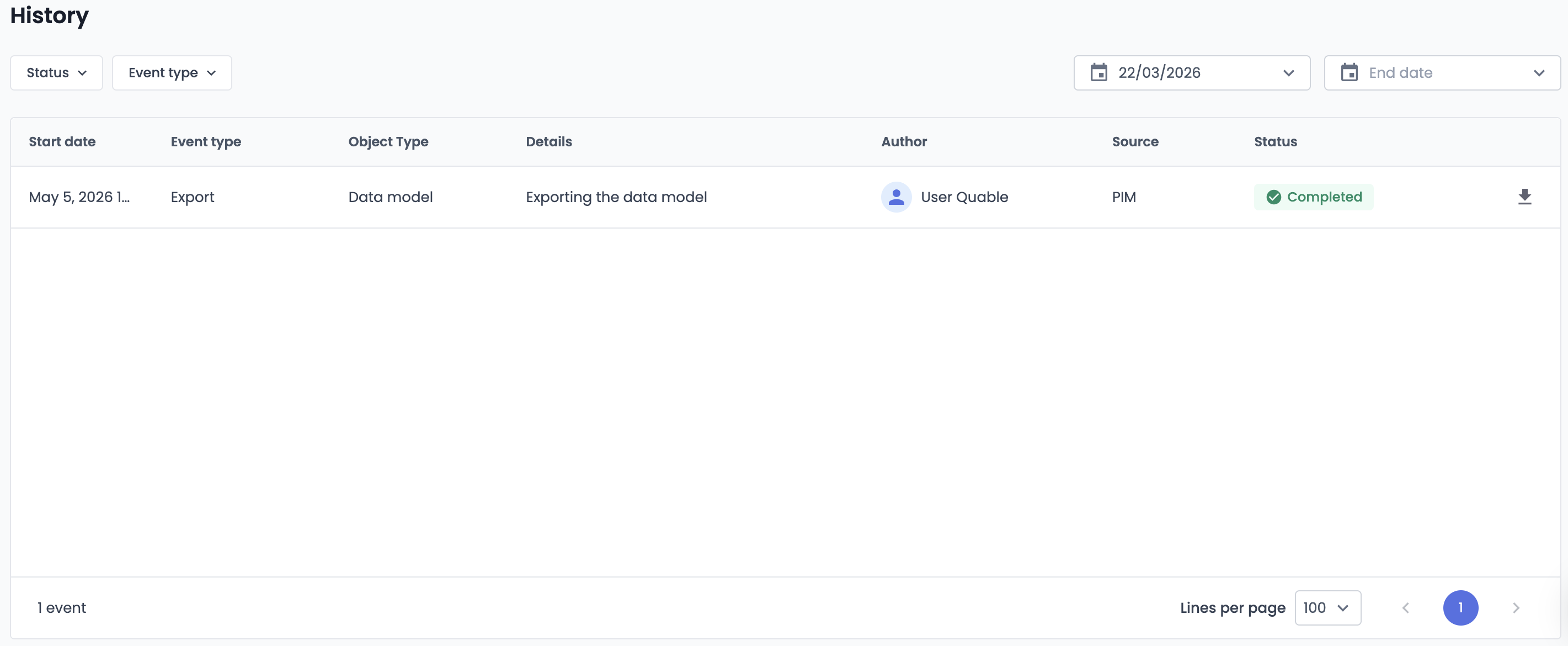
Good to knowRemember to download and archive important exports to your computer. Files available in Downloads are not a permanent backup.
Related Pages
- Attributes — Create and manage attributes for your document types
- Attribute Sets — Group attributes into sets
- Link Types — Define relationships between entities
- Data Languages — Manage input languages
- Reset — Reset data, the model, or the entire instance
- Roles and Permissions — Configure user access rights
- Permissions Table — Complete reference of available permissions
Updated 6 months ago