
Creating Channels
Create a new distribution channel to share data stored in the PIM.
Learning objectives
- Distribute tailored information: Product Sheets and assets from the PIM to external recipients.
- Manage channels: create, customize, or delete channels.
Overview of Distribution Channels
Distribution channels allow you to publish information from Quable PIM to various external recipients, such as:
- e-commerce platforms,
- marketplaces,
- product portals,
- printed catalogs,
- points of sale, etc.
LimitationsYou can configure up to 10 distinct channels.
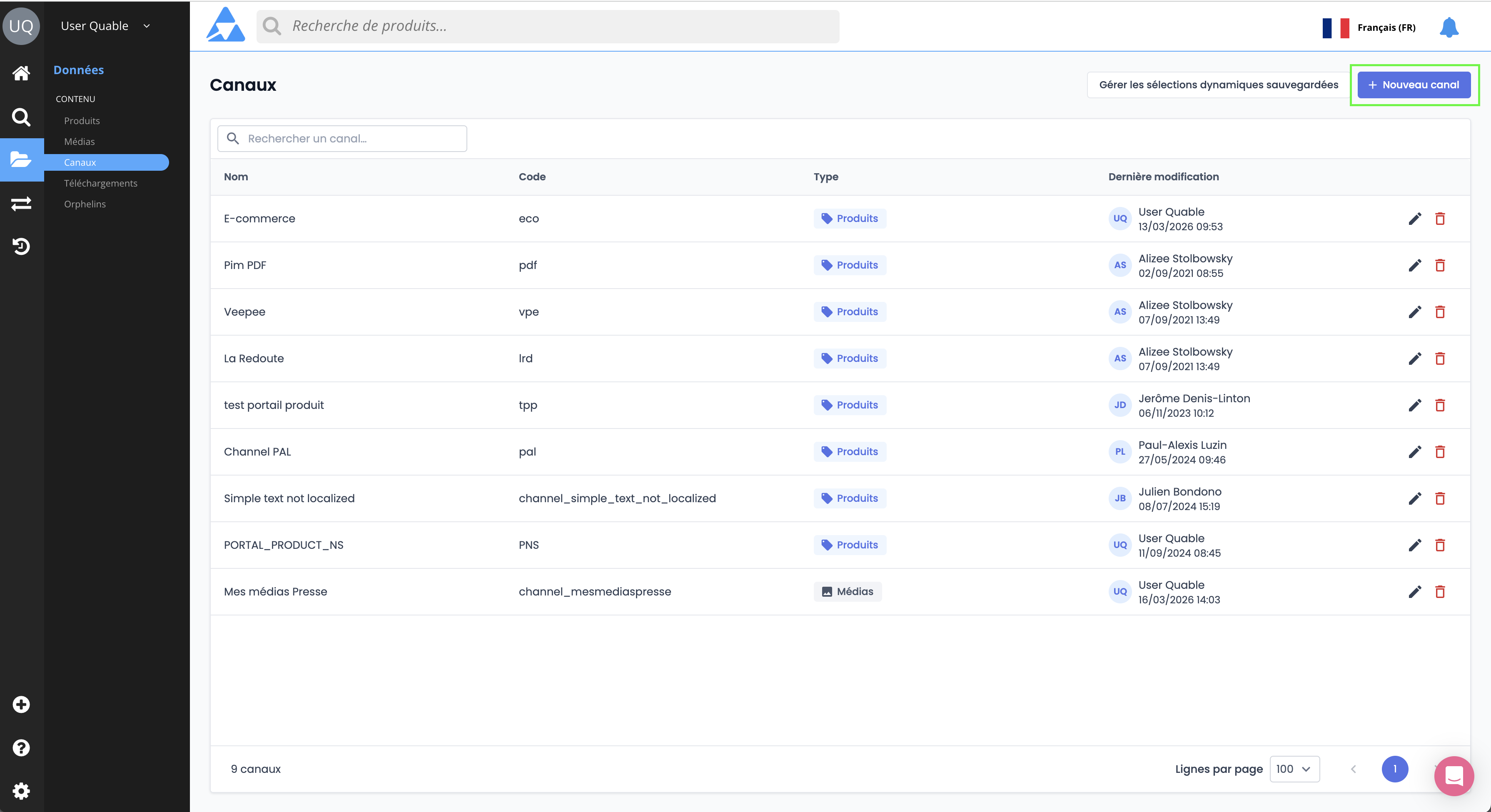
The Channels page centralizes all available actions:
- view all existing channels,
- quickly search for a channel,
- create a new channel,
- edit or delete an existing channel.
Each channel is defined by:
- a name (business-friendly label),
- a code (short identifier),
- a type (Product or Asset),
- a last modified date.
To access channels, go to Data > Channels.

Channels are fully customizable. You can define:
- the classification hierarchy,
- the data to distribute,
- the information associated with Product Sheets or assets.
Create a Channel
Before getting started, keep in mind that creating a channel means defining a new distribution context. Identify your requirements and objectives:
- Why do you want to distribute this data?
- Which data should be shared and which should be excluded?
Then, follow these steps to configure a channel that meets your objectives:
-
Go to the Channels page,
-
Create a new channel: click the + New Channel button in the top-right corner of the page,
3. Enter the required information:
* **Channel Name** (*required*).
* **Channel Code**: 3 characters (*required*).
* **Channel Type**: *Products* or *Assets*.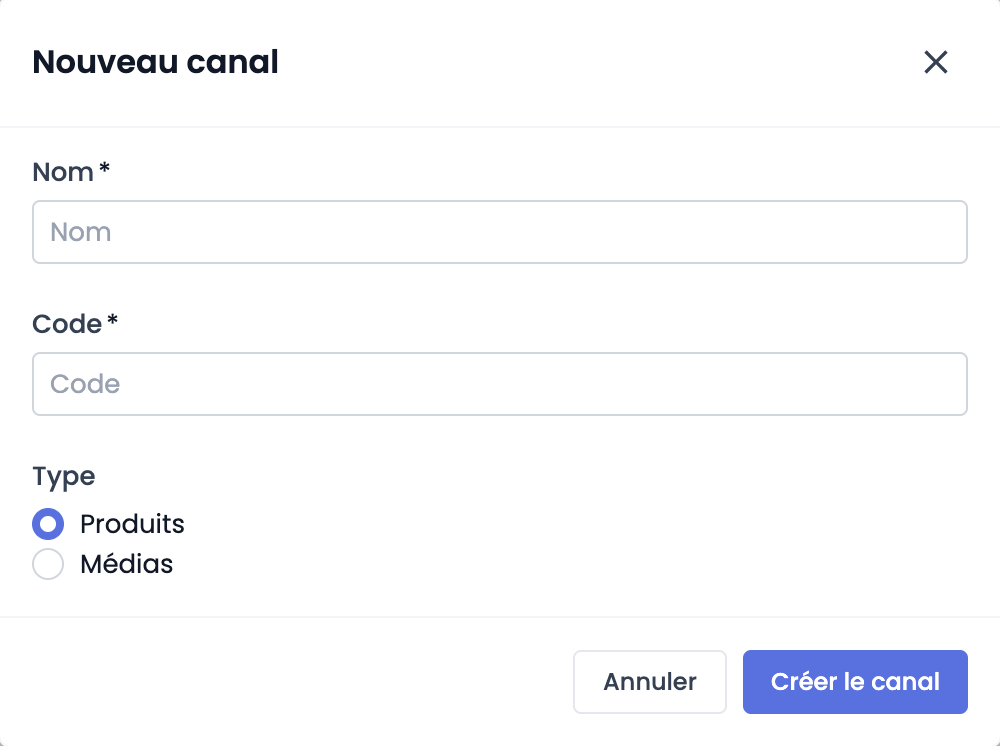
Good to know
- It is essential to clearly define the requirement before creating the channel.
- Use a clear and meaningful name that is understandable to teams (marketing, e-commerce, etc.).
- Plan ahead: one channel = one distribution objective.
Channel Types
- Products The Products channel type allows you to distribute Product Sheets, their attributes, associated assets, and related parent and child Product Sheets. This channel type is ideal for publishing complete product information from the PIM.
- Assets The Assets channel type allows you to distribute only assets and their attributes. This channel type is ideal for sharing visuals with the press, partners, or suppliers.
Good to know
- The channel type is a key decision and cannot be changed later.
- The channel type cannot be modified after creation.
Delete a Channel
To delete a channel, follow these steps:
-
Go to the Channels page,
-
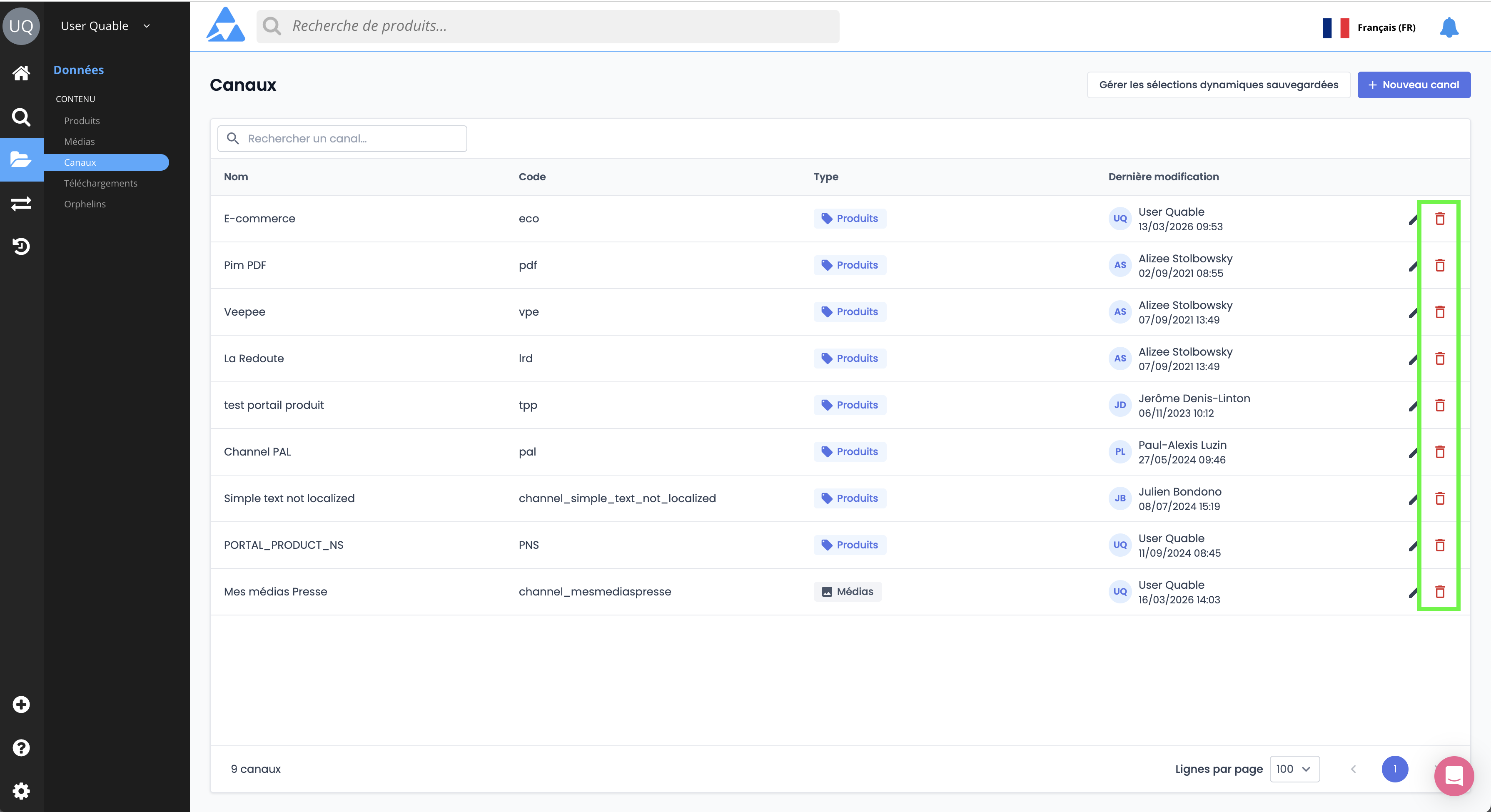
Locate the channel you want to delete in the list,
-
Click the Trash button at the end of the channel row on the right,
-
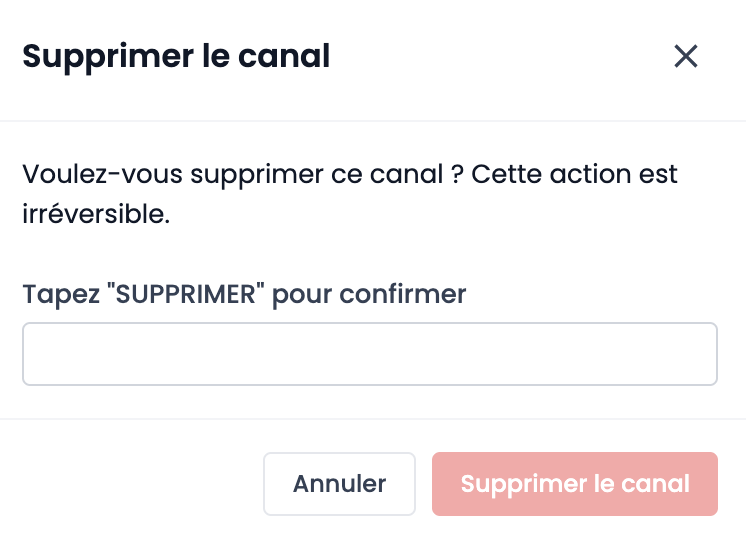
Confirm the deletion by following the instructions and click Delete Channel
Good to know
- Deleting a channel is permanent.
- Associated data will be lost and cannot be recovered.
- Product Sheets and assets will not be deleted from the PIM.
Summary
Distribution channels:
- Allow you to share PIM data with various recipients (e-commerce platforms, marketplaces, press, partners, etc.).
- Channels are customizable: classification hierarchy, distributed data, and associated information.
Channel types:
- Products: Distributes Product Sheets along with their attributes, associated assets, and parent/child relationships.
- Assets: Distributes only assets and their attributes (ideal for visuals, press, or partners).
Good to know: You can create up to 10 distinct channels.
Next Chapter
Now that you know how to create channels, let's discover how to Manage Classifications in a Channel.
Updated 4 months ago